
Membership & Tiers
Membership and Loyalty work as a pair
A membership tier on its own earns nothing — it is just a label and a level. What members in a tier actually earn comes from a Loyalty program linked to that tier.
Always create the tier first, then the loyalty program. See Core Concepts.
Overview
Membership tiers are the levels your customers belong to — for example Member, Silver, Gold, Platinum. Every member sits in exactly one tier at a time.
Tiers let you treat your best customers better: a higher tier can earn points faster, get exclusive vouchers, or receive a welcome gift. At its simplest, you only need one tier so that members exist at all.
How it works
- Every member belongs to one tier.
- Each tier has a numeric level. A higher level is a higher tier.
- When auto-upgrade is on, Rewardly checks a member's spending after each sale and promotes them to the highest tier they qualify for.
- A membership can expire after a set number of days (optional).
- A tier can give a welcome gift when a customer joins it, and birthday points each year.
How members move up
When auto-upgrade is enabled, promotion is automatic — the member does nothing. Rewardly checks each member's qualifying activity after every sale and moves them to the highest tier they have earned, following the Level order of your tiers.
- Allow skip level on — a member can jump straight to any tier they qualify for.
- Allow skip level off — a member can only move up one tier at a time.
These two behaviours have a platform-wide default in Merchant Settings, and each tier can override them (see Advanced options).
Default setup
Bean & Brew example: one tier called Member. This is the minimum — it is exactly what Step 5 of First-Time Setup creates.
- In the sidebar open Customers & Loyalty → Programs → Memberships (
/memberships), then click Create. - Fill in:
- Name —
Member - Level —
1 - Is Active — on
- Show on Member App — on
- Name —
- Leave every other field at its default.
- Save.
- Now create a Loyalty program and link it to this tier.
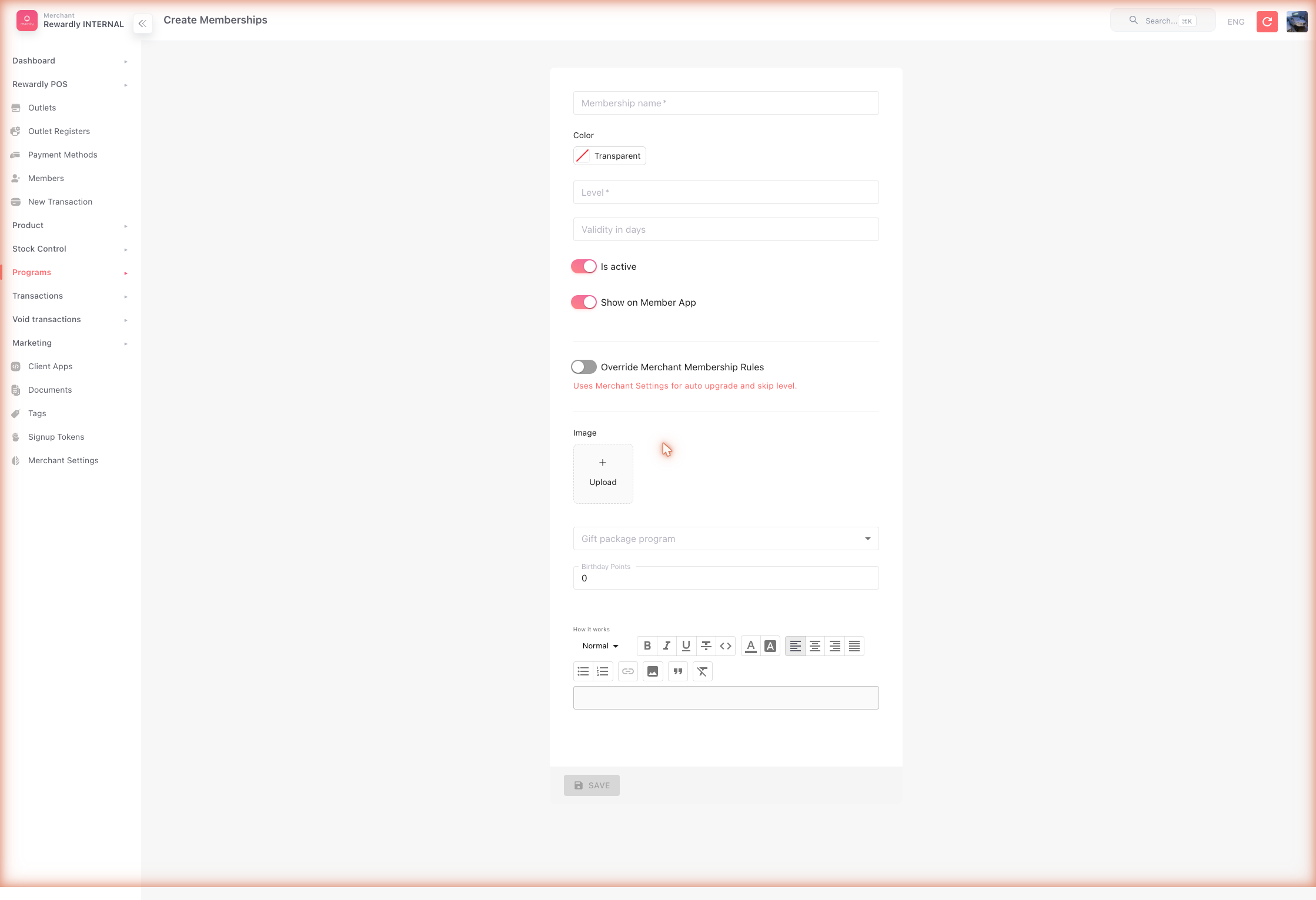 That's all most businesses need to launch. Add more tiers later from the same screen.
Advanced options
Multiple tiers
To run Silver → Gold → Platinum, create one membership per tier with increasing Level numbers:
| Tier | Level |
|---|---|
| Silver | 1 |
| Gold | 2 |
| Platinum | 3 |
Then create one Loyalty program per tier — this lets you give Gold members a faster earn rate than Silver. With auto-upgrade enabled, members are then promoted through these tiers automatically as they qualify.
All membership fields
| Field | What it does |
|---|---|
| Name | The tier name shown to customers. Required. |
| Level | The tier's rank. Higher number = higher tier. Required. |
| Color | The colour of this tier's membership card in the member app. |
| Validity in days | The membership expires this many days after a customer joins the tier. Leave blank for no expiry. |
| Is Active | Turns the tier on or off. Inactive tiers cannot be used. |
| Show on Member App | Whether customers see this tier in the member app. |
| Image | An icon or image for the tier. |
| Override Merchant Membership Rules | When on, this tier uses its own auto-upgrade and skip-level settings instead of the platform-wide ones. |
| → Auto upgrade membership | (shown when override is on) Auto-promote into this tier when a member qualifies. |
| → Allow member to skip level | (shown when override is on) Allow members to jump to this tier without climbing one level at a time. |
| Gift program | A Package given to a customer the moment they join this tier — a welcome gift of credit, points, and/or vouchers. |
| Birthday Points | Bonus points given to members of this tier on their birthday. 0 = none. |
| How it works | A rich-text description of the tier's benefits, shown to customers. |
Welcome gifts come from Packages
The Gift program field expects a Package program. Build the package first, then select it here.
What members & staff see
In the member app, each customer has a flippable Membership Card:
- Front — their loyalty balance and the tier name with a membership icon. A customer with no tier sees "No Membership".
- Back — the membership expiry date and their email.
Only tiers with Show on Member App enabled appear.
At the POS, when a cashier attaches a member to a sale, the customer panel shows "<Tier name> member" next to their name.
Related
- Loyalty Points — the required partner of every tier.
- Packages — used for the welcome Gift program.
- Merchant Settings — platform-wide auto-upgrade, skip-level, and minimum-active-days settings.
- What Members See — the membership card in the app.