
Store Credit
Overview
Store credit is a prepaid balance — a wallet — that a customer can spend with you like cash. It is denominated in real money (dollars), not points.
Customers build up store credit by topping up, by receiving it as a reward, or by converting loyalty points. They spend it at the POS as a payment method.
How it works
How store credit gets onto an account
| Route | How |
|---|---|
| Manual top-up | You add credit to a customer's account directly. |
| Top-up bonus | A customer pays in, and a conversion rate gives them extra (e.g. pay $50, get $55). |
| Rewards | Cashback, packages, and stamp cards can all pay out as store credit. |
| Point conversion | Members convert loyalty points into store credit. |
Spending it
At the POS, store credit is a payment method. The cashier picks Store credit, and the amount comes off the balance. Credit can have an expiry date, or no expiry at all.
Post-pay credit
For trusted members you can enable post-pay credit — a credit line that lets a member pay now and settle later, even if their store-credit balance is empty. It appears at the POS as extra spending room beyond the current balance.
Default setup
Bean & Brew example: turn store credit on, and offer a top-up bonus — pay $50, get $55.
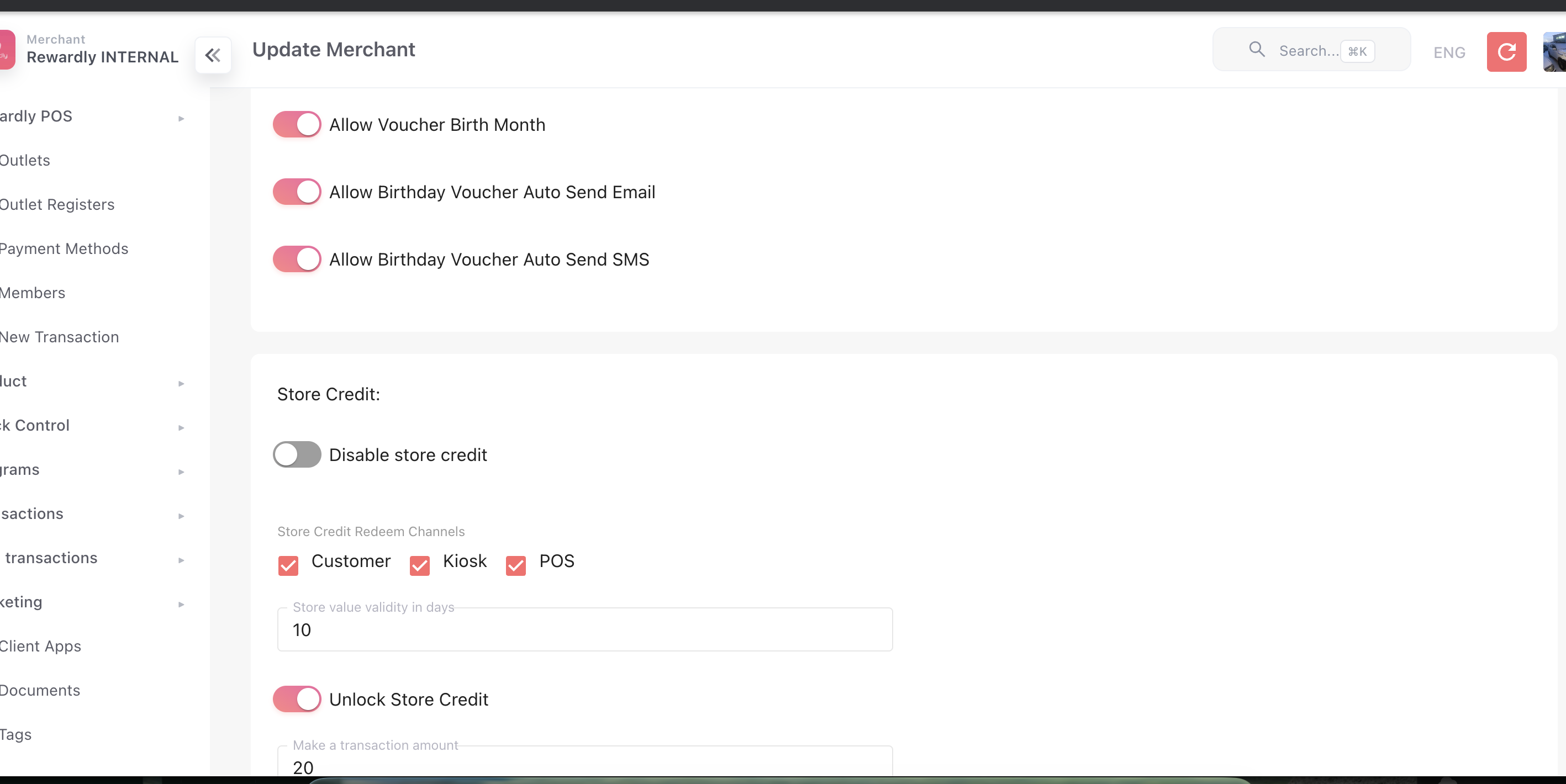
1. Make sure store credit is enabled
- Open Merchant Settings → Programs tab.
- Confirm Disable Store Credit is off.
 2. Create a top-up bonus (optional)
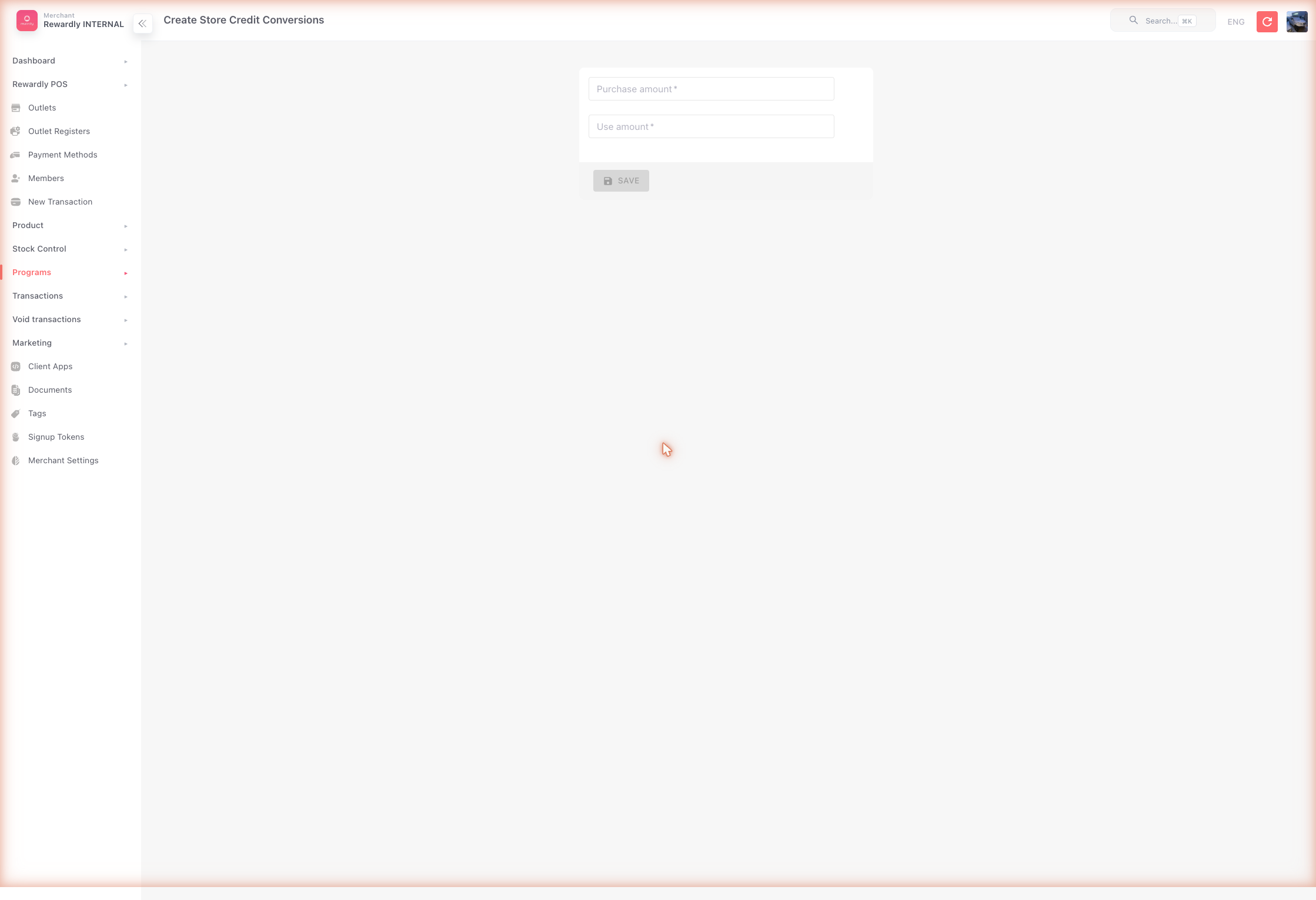
- In the sidebar open Customers & Loyalty → Programs → Store Credit (
/storeValueConversions) — the screen that holds the conversion rules — then click Create. The form is headed Create Store Credit Conversions. - Set:
- Purchase amount —
50(what the customer pays) - Use amount —
55(what they receive)
- Purchase amount —
- Save.
 3. Top up a customer
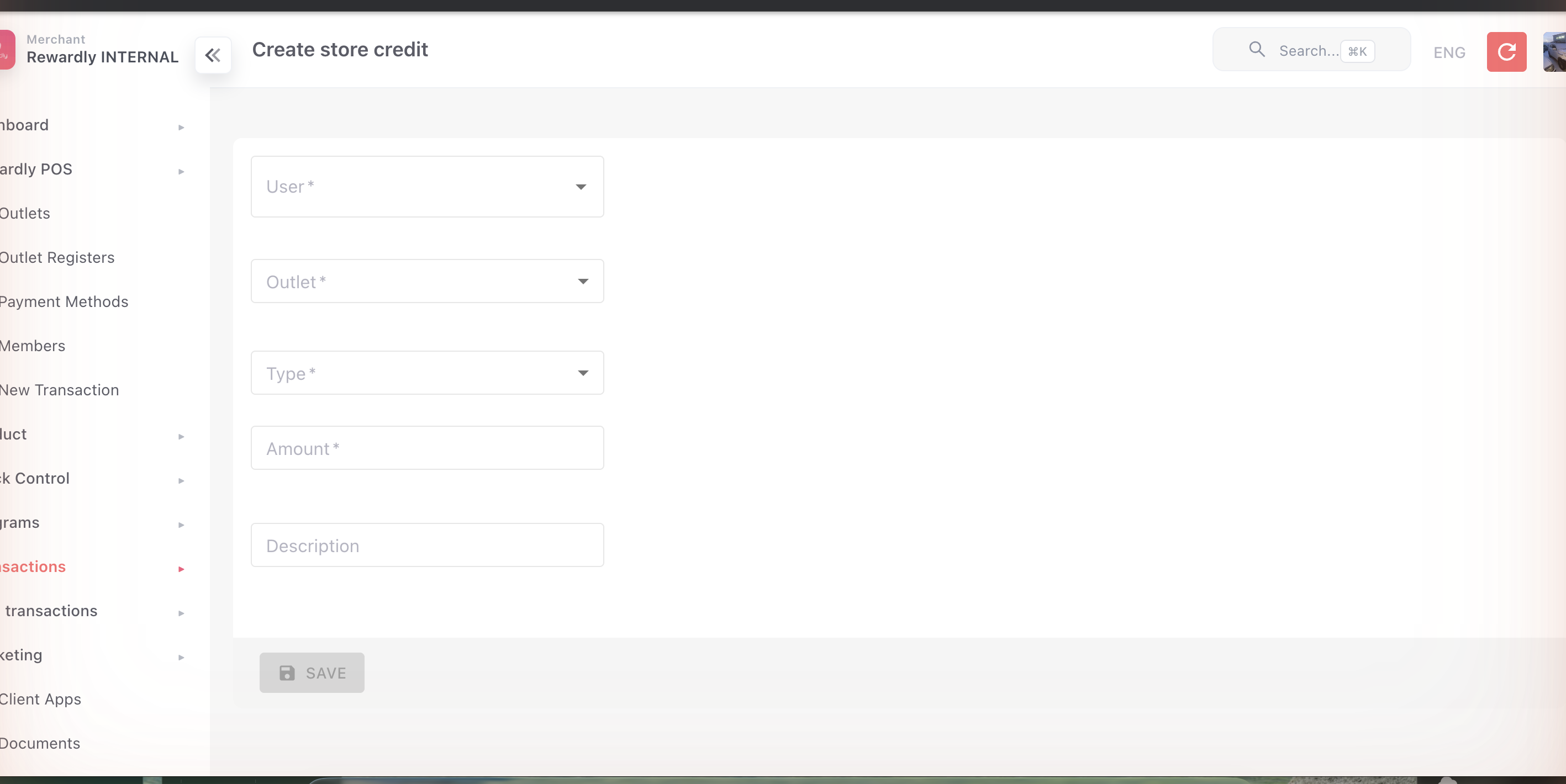
- In the sidebar open Customers & Loyalty → Programs → Store Credit (
/storeValues) — a second entry with the same name, this one listing customers' credit balances rather than the conversion rules — then click Create. - Choose the User and Outlet, set the Type to a top-up, and either pick the conversion you created or enter a manual amount.
- Add a Description for your records and Save.
Advanced options
Store credit settings (Merchant Settings → Programs tab)
| Setting | What it does |
|---|---|
| Disable Store Credit | The master switch. On = store credit is turned off entirely. |
| Store Credit Redeem channels | Where credit can be spent — Customer, Kiosk, POS. |
| Store value validity (days) | A default expiry for newly issued credit. |
| Allow negative store credit | Lets a balance go below zero (used with post-pay credit). |
| Negative store credit rules | The limit, cycle, billing cycle, and SMS/email reminders when balances go negative. |
| Unlock store credit | Requires a member to reach a set amount before their credit becomes spendable. |
Top-up conversions
A store credit conversion is a fixed pay X → receive Y rule. Create as many as you like (e.g. $50→$55, $100→$115) to reward larger top-ups more generously.
Post-pay credit
Post-pay credit is managed per customer as a credit account with a limit. The member can spend beyond their balance up to that limit and settle later. Payments and outstanding balances are tracked for you. At the POS it shows as "+ $X post-pay credit" on top of the normal balance.
What members & staff see
In the member app, customers see a Store Credit card showing their Balance, and a transaction history grouped into Collect / Gift / Spends tabs. Each entry is marked Top up, Redeemed, or Voided, and shows "No expiry" or an expiry date.
At the POS, choosing Store credit opens a modal showing "Your store credit". If post-pay credit is enabled, an extra line shows the available post-pay amount, and the cashier can charge against the combined total.
Related
- Post-Pay Credit — extends store credit with a buy-now-pay-later credit line.
- Cashback — pays out as store credit.
- Packages and Stamp Cards — can grant store credit.
- Loyalty Points — points can be converted into store credit.
- Merchant Settings — the store-credit master switch and rules.