
Online Ordering
Overview
Online ordering lets customers order from their own phone — they scan a QR code or open a link, browse your menu, and check out. No app to download.
How it works
- Online ordering is switched on per outlet, on the Order tab.
- Rewardly generates an order URL and QR code for the outlet automatically.
- You print the QR for tables or the counter, or share the link.
- Orders flow into your Order Management console and, if you use them, onto your kitchen screens.
Default setup
Bean & Brew example: a QR on each table so customers order without queueing.
- Open Outlets, edit your outlet, and go to the Order tab.
- Turn on Order, and choose an operation type (e.g. Quick Service).
- Set your allowed order hours per day (e.g.
09:00-22:00). - The outlet's order URL and QR code appear on this tab — print or share them.
- Save.
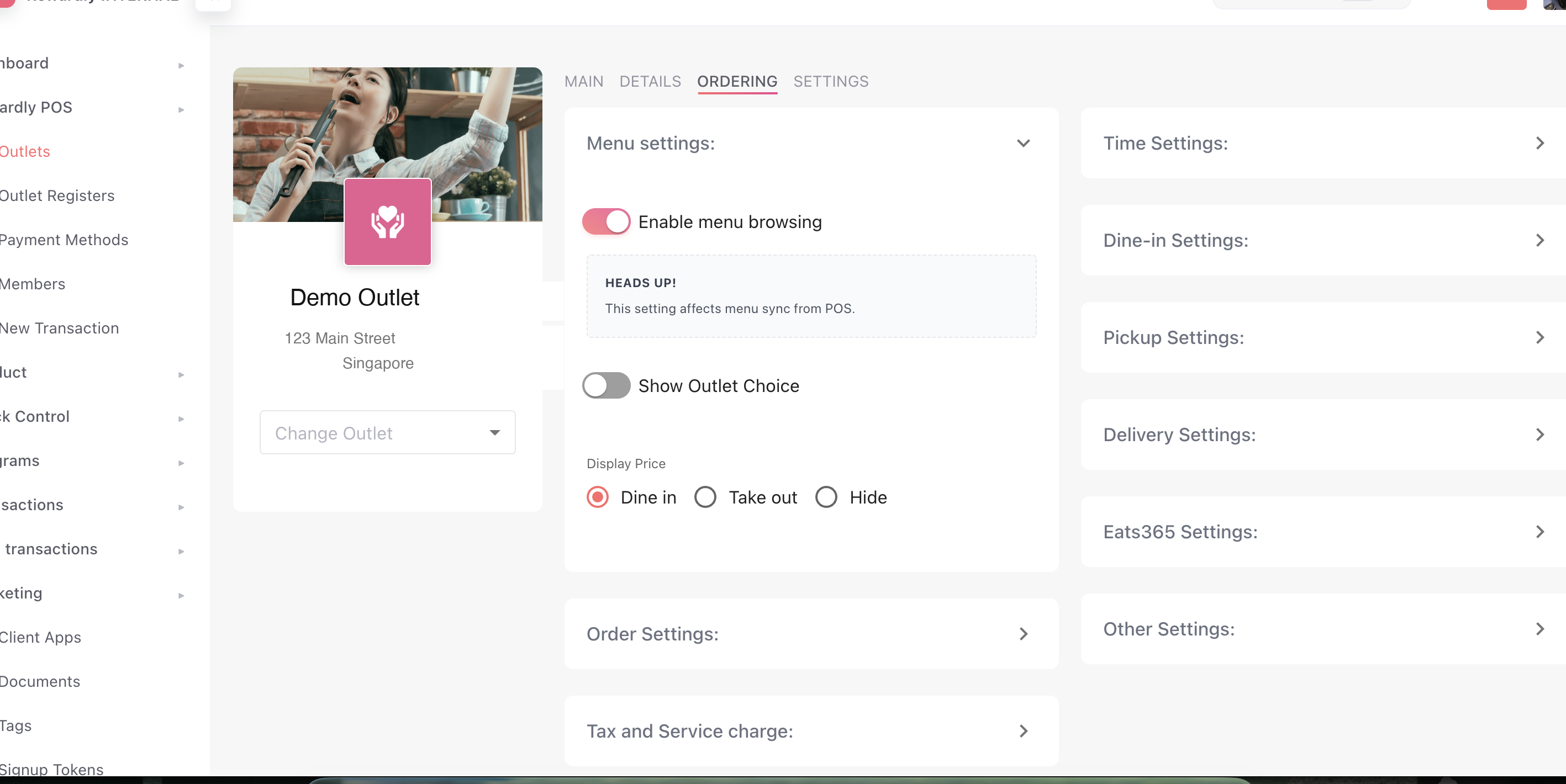 Customers can now scan and order.
Advanced options
| Setting | What it does |
|---|---|
| Order interval / padding time | Time padding between orders so the kitchen isn't overwhelmed. |
| Pre-orders | Let customers order for a future date, up to a set number of days ahead. |
| Pre-payment for advance orders | Require payment up front for advance orders. |
| Blackout days | Specific dates when online ordering is closed. |
| Order statistics | Show customers a live queue or estimated wait time. |
| Banner & confirmation messages | Custom text on the ordering page and at checkout. |
| Notification matrix | Choose Email/SMS notifications per order mode and per order status. |
| Default status after paid | The status an order takes once it's paid. |
Related
- Menus — what customers see when they order.
- Order Management — where online orders arrive.
- Outlet Settings — the full Order tab reference.