
Discounts
Overview
A discount takes money off the bill immediately, at the point of sale. Use discounts for promotions like "10% off", "$5 off orders over $50", or "happy hour on coffee".
Discount or Cashback?
Discounts and Cashback are built on the same engine. The difference is timing: a discount comes off the current bill; cashback returns value later as store credit. If you want the customer to save now, use a discount.
How it works
Discount rule types
When you create a discount you choose a rule type, which sets what it discounts:
| Rule type | What it does |
|---|---|
| Rule | A percentage off the whole bill (e.g. 10% off everything). |
| Amount | A fixed amount off the bill (e.g. $5 off). |
| Product | A percentage off specific products, categories, or tags. |
| Buy X get Y free | Buy a quantity, get a quantity free — with optional mix & match across a category or tag. |
Pre-set discounts (non-membership)
A pre-set discount is a one-click discount your staff applies at the POS — Staff Meal, Influencer, Marketing etc. These are not tied to a membership tier: leave Membership blank, tick only POS under Channels, and the discount becomes available to any cashier without a member attached.
When a discount applies
A discount is applied automatically at checkout when its conditions are met. You can narrow when and where it applies:
- Channels — POS, Kiosk, and/or Online.
- Time slots — specific days of the week and times of day.
- Start / expiry dates — a fixed promotional window.
- Membership — restrict the discount to one membership tier.
Stacking
By default a discount stands alone. Turn on Is stackable to allow it to combine with other discounts on the same sale.
Default setup
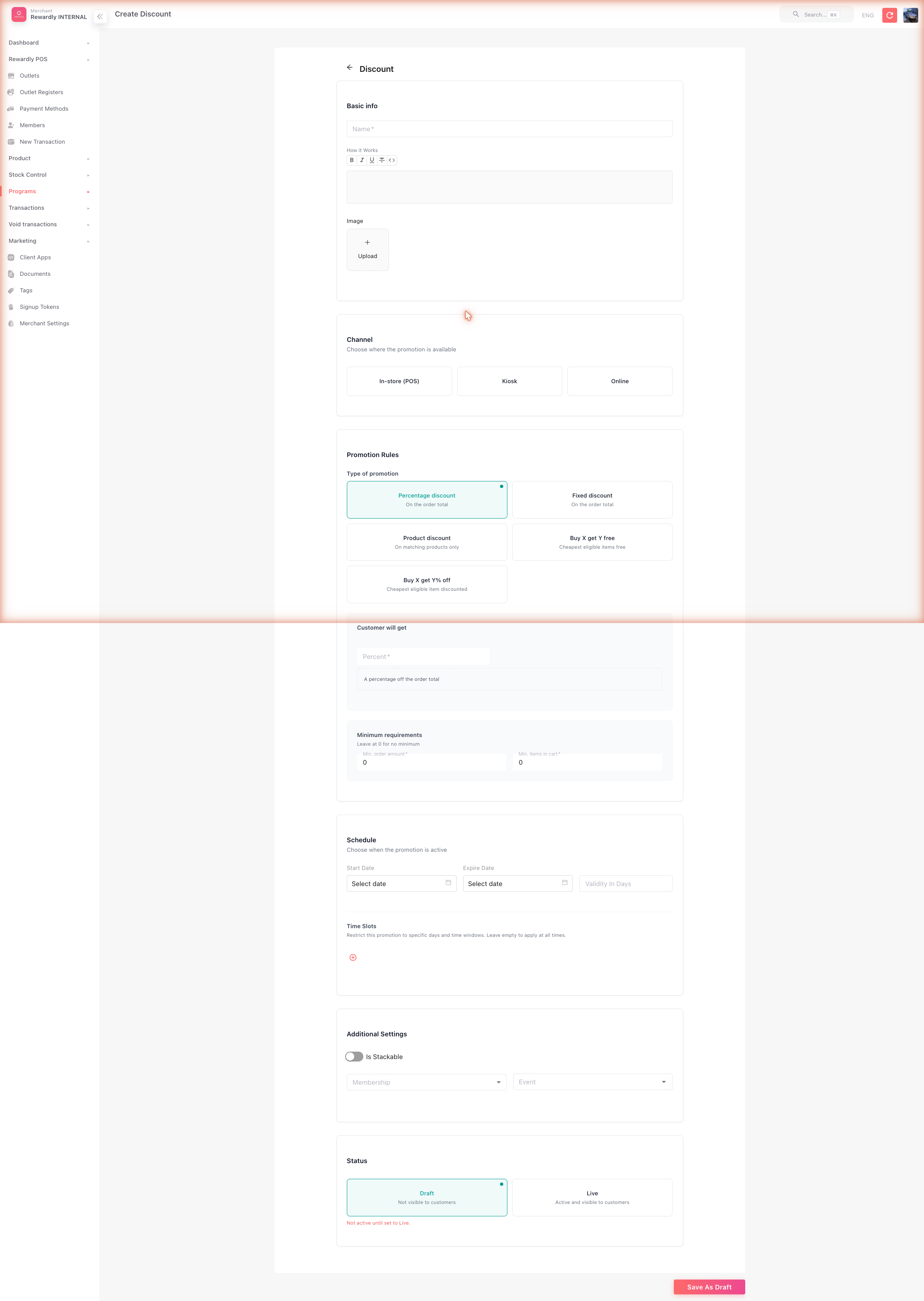
Bean & Brew example: a simple 10% off discount.
- In the sidebar open Customers & Loyalty → Programs → Discount/Cashback Programs (
/programsdiscountCashback), then click Create. - Fill in the basics:
- Name —
10% Off - Channels — tick POS
- Name —
- In the promotion rules:
- Discount type —
Discount - Rule type —
Rule(whole bill) - Percent —
10
- Discount type —
- Set Status to Draft, review, then switch to Live and Save.
Advanced options
All discount fields
| Field | What it does |
|---|---|
| Name | The discount's name. Required. |
| How it works | A rich-text description shown to customers. |
| Image | A picture for the discount. |
| Channels | Where the discount applies — POS, Kiosk, Online. |
| Display banner on Kiosk | (Kiosk channel) Promote the discount on the kiosk screen. |
| Start date / Expiry date | The promotional window. |
| Validity in days | A rolling validity instead of fixed dates. |
| Time slots | Days of the week and times of day when the discount is active. |
| Is stackable | Allow the discount to combine with other discounts. |
| Membership | Restrict the discount to one membership tier. |
| Event | Link the discount to a voucher event. |
| Rule type | Whole bill (Rule), fixed amount (Amount), or specific products (Product). |
| Percent | The percentage off (Rule and Product types). |
| Amount | The fixed amount off (Amount type). |
| Rule products | (Product type) The products, categories, or tags discounted, and the quantity required. |
| Status | Draft (inactive) or Live (active). |
Buy X get Y free — mix & match
The Buy X get Y free rule type covers any "buy N, get M free" promo (Buy 3 get 1 free, Buy 5 get 2 free, etc.). It's powerful enough to handle mixed-category promos and pricing-aware auto-application:
- Buy Product → Product Select type — pick
By Category(e.g. all pastries) orBy Tag(any products carrying a tag you created). - Product Quantity — the X in "buy X": how many items must be in the basket before the rule kicks in.
- Free Product Quantity — the Y in "get Y free".
- Mix & match — when on, eligible products can be combined across the category/tag and the discount is applied to the lowest-priced product (price = item price + its modifiers / combo add-ons). When off, the required quantity must be the same SKU.
- Min Order Amount / Min Product Count — optional thresholds that must be met before the rule activates.
Product Tags — used for the By Tag selection. Create them in the sidebar under Tags (the third-from-last entry), with Tag Type =
product. Then assign tags to products on the product form, or via the bulk import / export.
Discount inventory (per-outlet cap)
Need a discount to only apply N times, per outlet? Add an inventory record on top of the discount — see Discount Inventory.
Discounts, tax, and service charge
How a discount interacts with tax and service charge — applied before or after — is controlled per outlet by Apply Discount with Tax and Apply Discount with Service Charge. See Outlet Settings.
What members & staff see
At the POS, qualifying discounts apply automatically. Staff can also open the Discount button in the basket, which has three tabs:
- Amount — a manual flat amount off.
- Percent — a manual percentage off.
- Programs — your pre-built discount programs.
Applied discounts are itemised in the basket under "Discounts" and can be removed.
Related
- Cashback — the same engine, but value is returned later.
- Store Credit — where cashback value lands.
- Discount Inventory — cap how many times a discount can be used per outlet.
- Outlet Settings — discount/tax/service-charge interaction.
- At the Counter — applying discounts during a sale.