
Vouchers
Overview
A voucher is a coupon a customer can use at checkout — money off, a free item, an item at a fixed price, and more. You design the voucher once; Rewardly gives each customer their own copy to use.
Vouchers are one of the most flexible tools in Rewardly. Use them for welcome gifts, birthday treats, promotions, or rewards earned from stamp cards and packages.
How it works
Voucher types
When you create a voucher you pick a type, which decides what it does:
| Type | What it does |
|---|---|
| Cash | A fixed amount off the bill (e.g. $5 off). |
| Discount | A percentage off the bill (e.g. 10% off). |
| Gift | A free item. |
| Item cash | A fixed amount off one specific item. |
| Item discount | A percentage off one specific item. |
| Free item | One or more free items chosen from a selection. |
| Fixed price item | A specific item sold at a price you set. |
| Free modifier | A free add-on/modifier (e.g. an extra shot). |
| Combo lowest price free | In a combo, the cheapest selected item is free. |
| Payment-linked | A prepaid voucher the customer pays with at checkout, like a gift card. |
For a first voucher, Cash or Discount is the simplest choice.
How customers get vouchers
A voucher program is the template. Customers receive their own voucher copy through any of these routes:
- Issued automatically — e.g. a welcome voucher on joining, or a birthday voucher.
- Issued by staff at the POS (if manual issuing is allowed).
- Earned by completing a stamp card or receiving a package.
- Bought by the customer — with points or with cash.
Hand-issuing needs Allow manual issuing
You can also hand a voucher to a member from the admin console — open History & Transactions → Voucher and use the manual issue form. The voucher still shows up in the list whether or not the toggle is on, but the issue only saves if that voucher's program has Allow manual issuing switched on — otherwise saving fails with "Manual issuing is disabled for this voucher".
Pre-printed vouchers (printed barcodes)
When you want to hand out vouchers physically — printed coupons, flyers, table tents, or scratch cards — use Pre-printed Vouchers. Instead of issuing each copy in the member app, you generate a batch of unique barcodes up front, print them, and distribute them in the real world. A customer redeems one by scanning or entering the code, which links the voucher to their account.
Open Customers & Loyalty → Programs → Pre-printed Vouchers, click Create, and fill in:
| Field | What it does |
|---|---|
| Voucher campaign name | A label for this batch (e.g. Spring flyer coupons). |
| Voucher | The voucher program these barcodes hand out — pick a Live program. |
| Quantity | How many unique barcodes to generate in this batch. |
| Generate barcode for voucher | Generates the printable barcode for each code. |
Each generated code tracks who claimed it and the claimed code, so you can see which barcodes have been redeemed and by whom.
The linked voucher must be Live
A pre-printed batch can only point at a voucher program whose Status is Live — draft programs don't appear in the Voucher picker. Set the voucher live before you generate barcodes.
Pre-printed vouchers are a distribution route distinct from manual issuing, stamp card / package rewards, and in-app purchase — use them whenever the voucher needs to leave the app on paper.
Lifecycle
- You create the voucher program and set its Status to Live.
- A copy reaches a customer through one of the routes above.
- The customer's copy has its own start date and expiry date.
- At the POS, your cashier applies the voucher and its value comes off the bill.
- Once used (or expired), the copy can no longer be applied.
Default setup
Bean & Brew example: a
$5 offcash voucher to welcome new members.
- In the sidebar open Customers & Loyalty → Programs → Voucher Programs (
/programsvoucher), then click Create. - Fill in the basics:
- Name —
$5 Welcome Voucher - Type —
Cash - Amount —
5 - Voucher Channel — tick POS (where it can be used)
- Leave Outlets empty to allow it everywhere.
- Name —
- In the advanced section set a Selling store credit price and Selling point — these are the prices if a customer buys the voucher. Set both to
0for a give-away voucher. - Set Status to Draft, review, then switch to Live and Save.
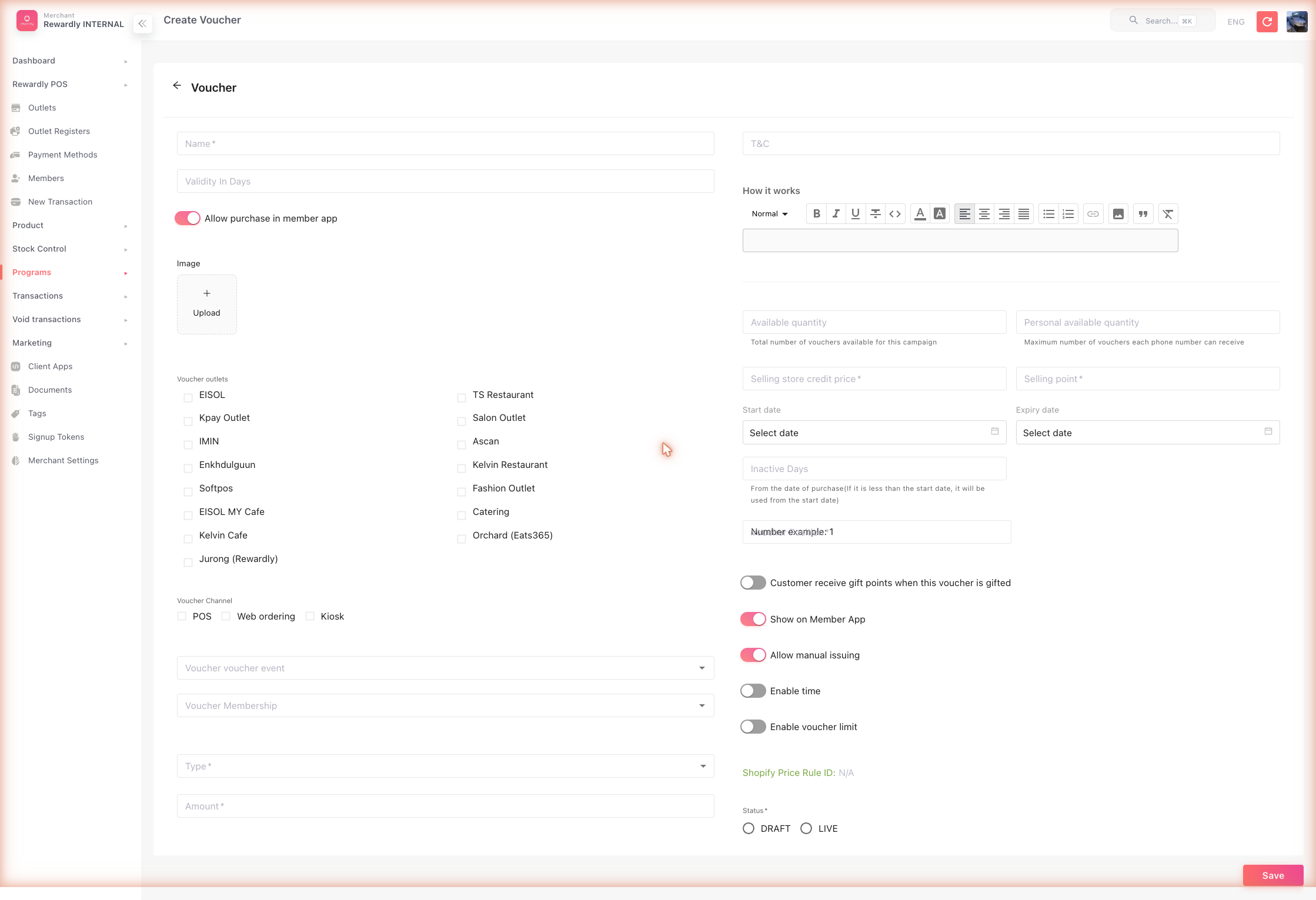 Your voucher now exists. To hand it out, issue it from the POS, attach it to a stamp card or package, or let customers buy it.
Advanced options
Targeting specific products
The item-based types (Gift, Item cash, Item discount, Free item, Fixed price item, Free modifier) ask which products they apply to. You can select by product, by category, or by tag, and for "Free item" vouchers you can enable Mix & match so eligible items are pooled together.
Usage conditions
A voucher can require the basket to meet conditions before it can be used — for example a minimum spend, a minimum quantity, or that specific products are present. Add these under the voucher's condition list.
Limits
| Field | What it does |
|---|---|
| Available quantity | The total number of this voucher that can ever be issued. |
| Personal available quantity | The maximum one customer can hold/buy. |
| Voucher limit (period) | Caps redemptions per day / week / month / year. |
Scheduling & availability
| Field | What it does |
|---|---|
| Validity in days | How long a copy stays valid after it's issued. |
| Start date / Expiry date | Fixed dates instead of a rolling validity. |
| Inactive days / hours | A delay before a freshly issued voucher becomes usable. |
| Enable time / Times | Restrict redemption to certain times of day. |
Other fields
| Field | What it does |
|---|---|
| Image | The voucher's picture in the member app. |
| Voucher Membership | Restrict the voucher to one membership tier. |
| Selling store credit price | The cash price if the customer buys the voucher. On a Payment-linked voucher this same field is labelled Customer pays ($). |
| Selling point | The points price if bought with points. |
| Has gift points / Gift points | Bonus points awarded when the voucher is claimed. |
| Show on member app | Whether customers can see the voucher in the app. |
| Allow manual issuing | Whether staff can hand the voucher out from the POS. |
| Terms / How it works | Description and terms shown to customers. |
| Status | Draft (inactive) or Live (active). |
Payment-linked vouchers
A Payment-linked voucher works like a gift card — the customer pays with it at checkout rather than getting a discount. At the POS it appears as its own payment tile, and staff must apply the voucher portion before other payment methods.
What members & staff see
In the member app, vouchers appear in the voucher feed, split into "My" (claimed) and "Other" (available to claim). Each shows its name, code, and expiry.
At the POS, the cashier taps Voucher in the basket. With a member attached they see two tabs — Member Vouchers and Search by Code. Applied vouchers show up as discount lines in the basket total. Used or expired vouchers are greyed out.
One voucher per sale by default
By default only one voucher can be applied to a sale. This is the outlet's Stack Voucher Type setting — see Outlet Settings.
Voucher events
Every voucher carries an Event — a tag that classifies the occasion that issues it. You pick one Event on the voucher form, and it's what lets the rest of Rewardly know why a voucher exists. The same events run through the industry recipes, so a voucher labelled Birthday behaves consistently wherever it's referenced.
| Event | What it's for |
|---|---|
| First-time shopper | A welcome voucher for a member's first visit. |
| Birthday | A treat issued around the member's birthday. |
| Special date | An anniversary, public holiday, or other calendar date. |
| Milestone | A reward for reaching a spend or visit milestone. |
| Refer a friend | A voucher tied to a referral. |
| Other | Anything that doesn't fit the above. |
Birthday and Special date events pair with the merchant's settings: birthday vouchers follow the birthday-month rules, and special-date vouchers fire on the dates you define under Special Dates — see Marketing.
Events are maintained by Rewardly
The list of events itself is set up by Rewardly (superAdmin) — you can't add or rename events, but you choose one per voucher. Note that first-time-shopper and birthday vouchers can't be bought by members in the app; they're issued for you.
Related
- Stamp Cards and Packages — can hand out vouchers as rewards.
- Loyalty Points — points can be spent to buy vouchers.
- Outlet Settings — controls whether vouchers can stack.
- At the Counter — applying vouchers during a sale.
- History & Transactions — hand-issue a voucher to a member.
- Loyalty Wallet — where members see and claim their vouchers.