
Stamp Cards
Overview
A stamp card is the digital version of the classic "buy 9, get 1 free" loyalty card. Customers collect stamps for doing something — usually buying a product — and when the card is full they receive a reward.
Stamp cards are great for driving repeat visits on specific products.
How it works
Challenges — the slots on the card
A stamp card is built from challenges. Think of each challenge as one slot on the card. Every time a customer meets the rule, they earn a stamp and fill the next challenge.
A challenge can carry a gift:
- Put the reward on the final challenge for a classic "collect them all" card.
- Put gifts on several challenges for milestone rewards along the way.
How stamps are earned
You choose a rule type that decides what earns a stamp:
| Rule type | A customer earns a stamp when they… |
|---|---|
| Product | Buy one of the specific products you list. |
| Amount | Spend a set amount of money (e.g. 1 stamp per $10). |
| Rule | Meet a rule-based condition (e.g. tied to membership). |
| Voucher | Redeem a particular voucher. |
The Product rule matches products only
A stamp is earned only for the exact products you pick, and picking at least one product is required. The outlet and category pickers simply narrow down the list of products you choose from — they are not conditions on their own, so buying something else in that category never earns a stamp. To earn stamps on tagged items, use the Rule rule type instead.
What the reward can be
When a challenge with a gift is reached, the customer receives its gift type:
- Store credit — a top-up to their store credit balance.
- Voucher — a voucher copy.
- Points — loyalty points.
- Membership — an upgrade to a membership tier.
- Package — a whole package of rewards.
Repeating the card
Max fill count sets how many times a customer can complete the card. Turn on No limit to let them collect it over and over.
Default setup
Bean & Brew example: a "Coffee Lovers Card" — buy 9 coffees, get the 10th free.
Build the reward first
The reward is a separate item. For a free coffee, first create a Giftvoucher for a free coffee — you'll attach it to the card below.
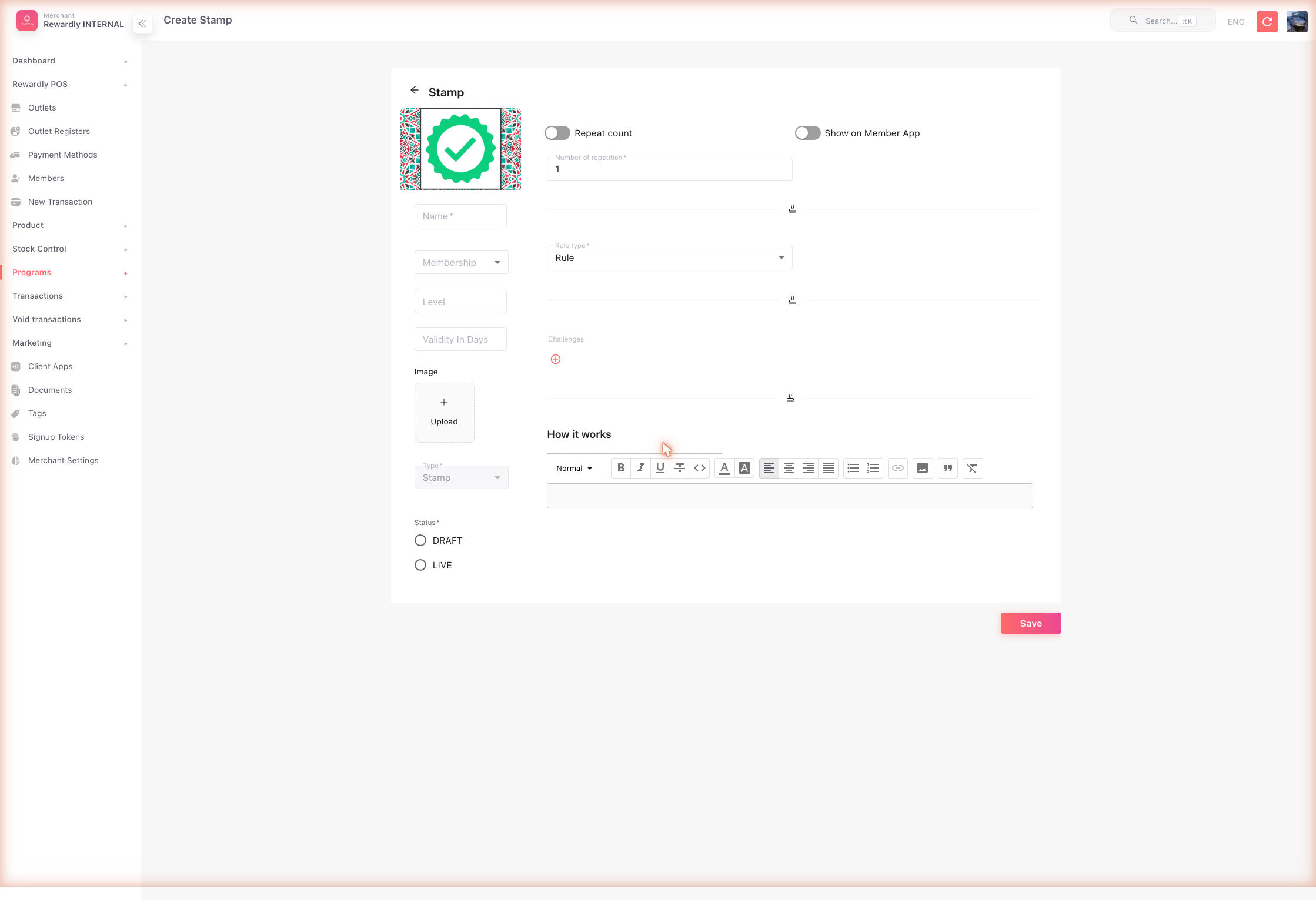
- In the sidebar open Customers & Loyalty → Programs → Stamp Programs (
/programsstamp), then click Create. - Fill in the basics:
- Name —
Coffee Lovers Card - Image — a card image (optional)
- Name —
- In the stamp rules:
- Rule type —
Product - Choose the outlets, then the category (
Coffee), then the products that earn a stamp.
- Rule type —
- Add challenges — one per slot on the card. On the final challenge, turn on Has gift, set Gift type to Voucher, and choose your free-coffee voucher.
- Set Max fill count (or turn on No limit so customers can keep collecting).
- Set Status to Draft, review, then switch to Live and Save.
Advanced options
All stamp card fields
| Field | What it does |
|---|---|
| Name | The stamp card name. Required. |
| Membership | Restrict the card to one membership tier. Optional. |
| Level | An optional ordering number. |
| Validity in days | How long a customer's card stays valid before it expires. |
| Image | The card's picture in the member app. |
| Rule type | What earns a stamp — Product, Amount, Rule, or Voucher. |
| Amount | (Amount rule) The spend needed per stamp. |
| Amount in ranges | (Amount rule) Different per-stamp amounts for set date ranges. |
| Rule products / categories / outlets | (Product rule) The products that earn a stamp — at least one product is required. The category and outlet pickers only narrow the product list you choose from; on their own they never earn a stamp. |
| Rule vouchers | (Voucher rule) Which vouchers trigger a stamp. |
| Challenges | The slots on the card, each optionally carrying a gift. |
| Max fill count | How many times the card can be completed. |
| No limit | Lets the card be completed an unlimited number of times. |
| Show in member app | Whether customers see the card in the app. |
| How it works | A rich-text description shown to customers. |
| Status | Draft (inactive) or Live (active). |
Per-challenge gift fields
When a challenge has Has gift on, you set:
- Gift type — store credit, voucher, points, membership, or package.
- The matching amount or item — e.g. Gift store value amount, Gift vouchers, Gift program amount (points), Gift membership, or Gift program (package).
What members & staff see
In the member app, customers see their stamp cards and how many stamps they've collected (cards with Show in member app enabled).
At the POS, stamps are awarded automatically when a qualifying sale is completed — during a normal sale there is no separate action for the cashier. When a card fills, the reward is issued to the customer's account.
Staff working the Concierge desk can adjust stamps by hand — manually issuing or voiding stamps on a member's card outside of a sale (for example, to credit a stamp earned offline or reverse one added in error). See Concierge.
Related
- Vouchers — the most common stamp-card reward.
- Store Credit, Loyalty Points, Packages — other reward types.
- Membership & Tiers — a stamp card can grant a tier upgrade.
- Products & Categories — define the products that earn stamps.