
Point of Sale
Overview
The Point of Sale (POS) is the tablet app your staff use to ring up sales, take payment, and print receipts. It's the heart of CommerceOS.
This page covers setting the POS up. For how a sale with loyalty runs step by step, see At the Counter.
How it works
- A cashier opens a New Sale and taps products into the basket.
- They pick an order mode — dine-in, takeout, or delivery.
- Optionally they attach a member (and a table, for dine-in).
- They take payment, and the receipt prints.
Each tablet logs in to one register at one outlet — see POS Settings.
Default setup
Getting a POS running takes three things, all covered in First-Time Setup:
- An outlet with the Order tab switched on.
- An outlet register for the till.
- POS staff accounts so cashiers can log in (below).
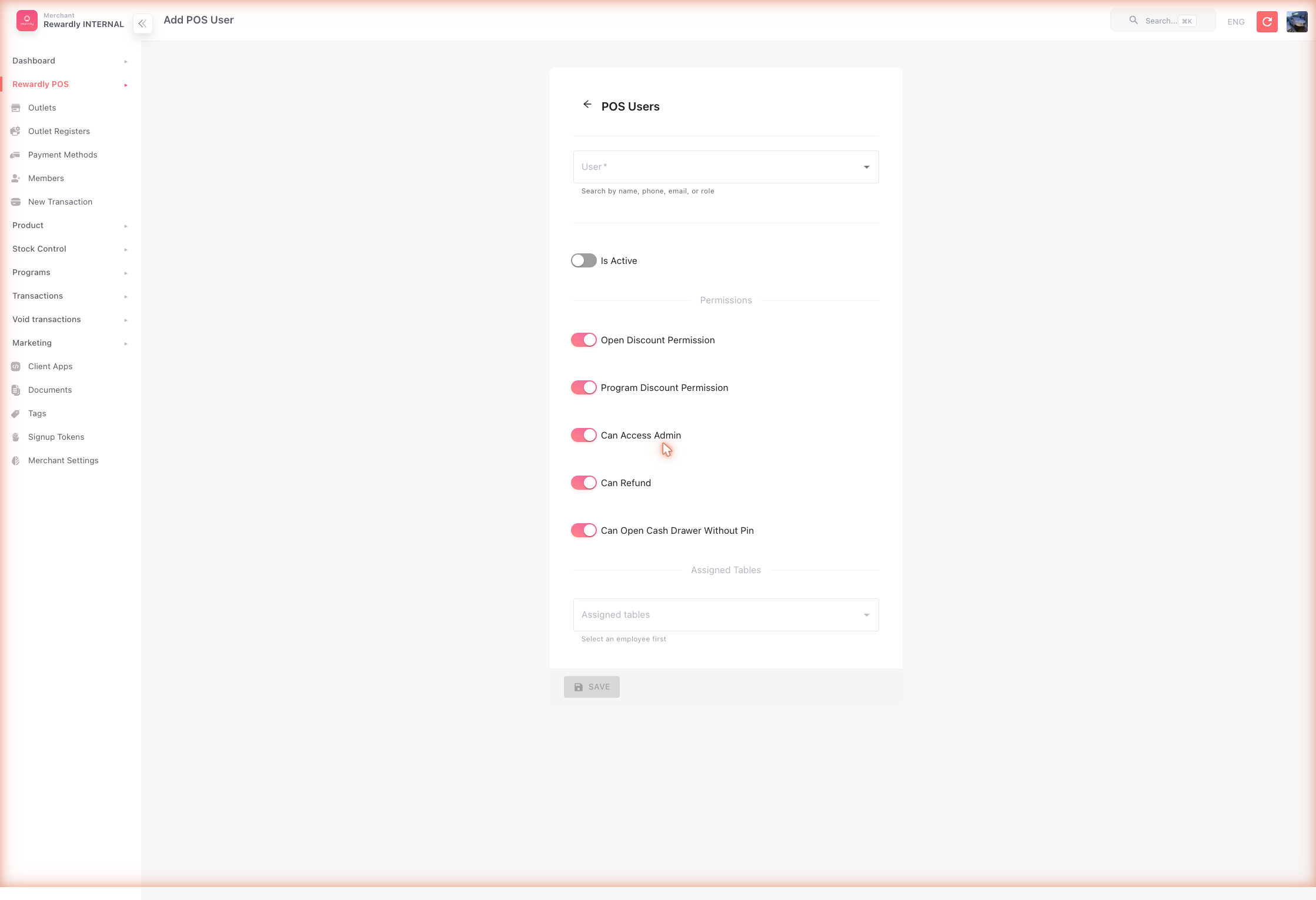
Create POS staff accounts
In the sidebar open POS Users, then Create:
- User — search for and link an existing user (by name, phone, or email).
- PIN code — the staff member's POS login PIN.
- Is Active — turns the account on.
Advanced options
Staff permissions
Each POS user has permission switches:
| Permission | What it allows |
|---|---|
| Open discount | Apply a manual amount/percent discount. |
| Program discount | Apply pre-built discount programs. |
| Can access admin | Open admin settings from the POS. |
| Can refund | Process refunds. |
| Can open cash drawer without PIN | Open the drawer without entering a PIN. |
Staff also have a role — cashier, waiter, concierge, outlet admin, accountant, and more. A waiter can be limited to specific tables.
Outlet selling rules
The outlet's Order tab governs how the POS calculates a bill:
- Tax — inclusive or exclusive, the rate, and secondary taxes.
- Service charge — the type (none / liable for GST / not liable), the rate, which order modes and channels it applies to, and whether to waive it for members.
- Rounding — rounding mode and value, optionally cash-only.
- Open item — let cashiers add an ad-hoc, custom-priced item.
- Remarks — let staff add notes to an order.
See Outlet Settings for the full list.
Related
- POS Settings — registers and the on-tablet settings.
- At the Counter — running a sale with loyalty.
- Order Management — reviewing completed orders.
- Payment Methods — the tender buttons on the POS.