
Kitchen Display (KDS)
Overview
A Kitchen Display is a screen that shows orders to your team — replacing printed kitchen chits. Rewardly supports three kinds of display, all set up the same way:
| Display type | What it shows |
|---|---|
| KDS (kitchen) | Incoming orders for kitchen staff to prepare and "bump" when done. |
| eSignage (pickup) | A customer-facing screen of "preparing" vs "ready" orders; can call orders aloud. |
| Waiter | A table-service view for waiters to track and serve orders. |
Not available for Retail
Kitchen displays apply to Quick Service and Full Service outlets. They aren't used when an outlet's operation type is Retail.
How it works
- Each screen is registered as a display device account with its own login.
- A display can be filtered to certain categories or tags — so a "Drinks" screen only shows drinks, and a "Hot Kitchen" screen only shows food.
Default setup
Bean & Brew example: one kitchen screen so baristas see drink orders.
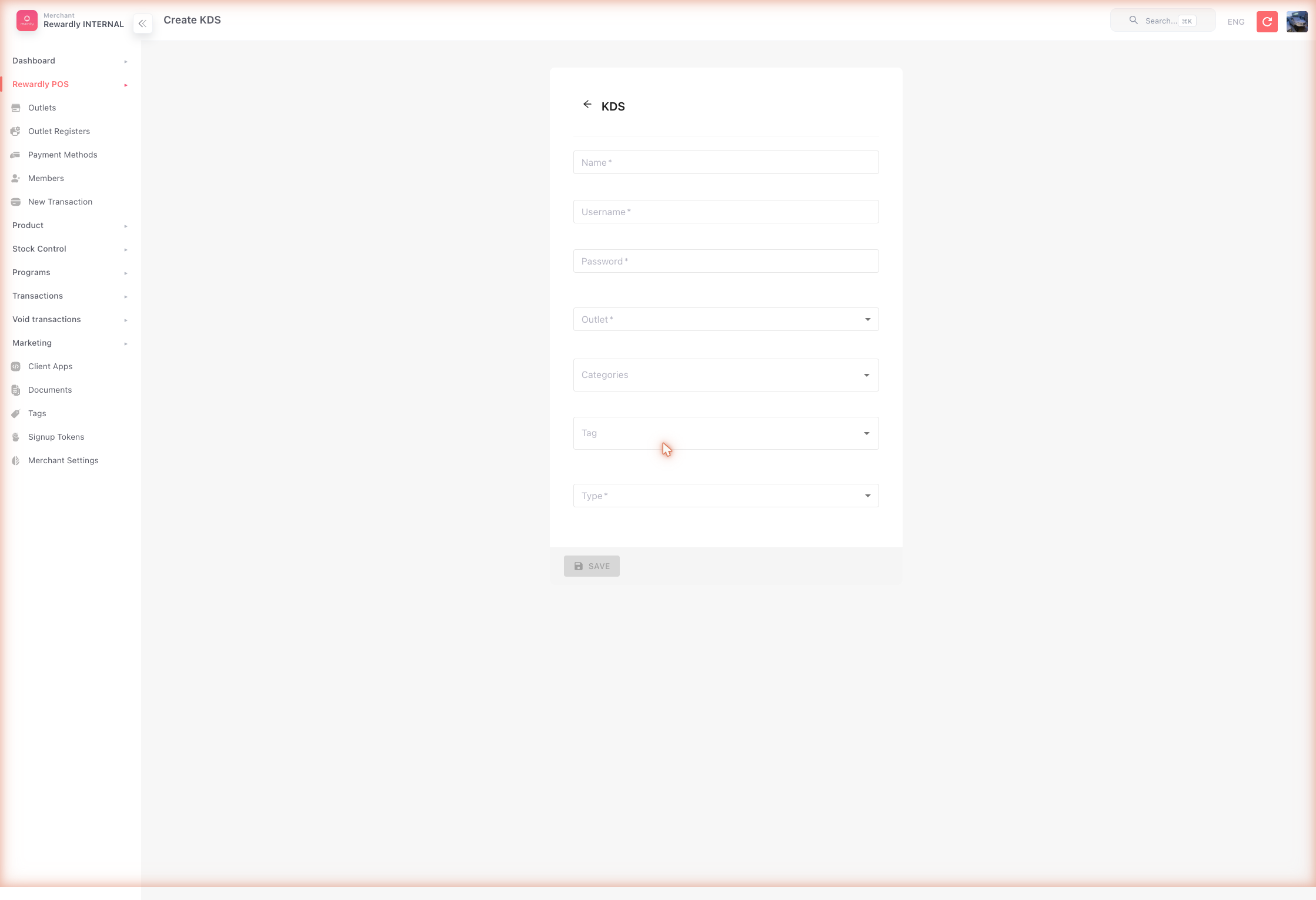
- In the sidebar open Sales → POS → KDS (
/kds), then click Create. - Fill in:
- Name, Username, Password — the device and its login
- Outlet — the branch this screen serves
- Type — KDS, eSignage, or Waiter
- Save, then log the display device in.
The KDS list shows every account's Username and Password, so a forgotten display login can be read there, and Edit changes it. For an eSignage TV that shows a pairing code, use Pair TV on its row — see eSignage.
Advanced options
| Setting | What it does |
|---|---|
| Categories / Tags | Route only matching products to this screen — used for station-specific screens (drinks, hot kitchen, etc.). |
| eSignage: speech template | The phrase called aloud, e.g. "Your order $orderNumber is ready", plus the speech rate. |
| eSignage: show online-order QR | Display an online-ordering QR on the pickup screen. |
| eSignage: layout | Column count and arrow direction. |
| KDS: inform by email / SMS | Notify the customer when their order is ready. |
| Waiter: serve preparing orders | Allow a waiter to access and serve all preparing orders. |
Related
- Online Ordering & Self-Service Kiosk — common sources of kitchen orders.
- Order Management — the admin view of every order.