
Inventory
Overview
Inventory is the unit model of stock tracking — it counts whole sellable items. When a product is sold on the POS, its stock count goes down by one. When the count hits zero, the product is sold out.
This is the right choice for retail and packaged goods. For food and drink made from raw materials, use Ingredients & Recipes instead.
How it works
- You turn on stock tracking per product.
- Each sale lowers that product's count; a voided sale can return it.
- Every movement is recorded in a stock ledger you can review later.
- Stock can be a single shared count, or set per outlet so each branch has its own number.
Default setup
Bean & Brew example: track the bags of coffee beans they sell off the shelf.
Stock tracking is switched on inside the product, not on a separate screen:
- Open Products → Products and edit the product (e.g.
Coffee Beans 250g). - Find the Track quantity section and turn on Track quantity.
- Set Remaining quantity to your current stock count (e.g.
24). - Save.
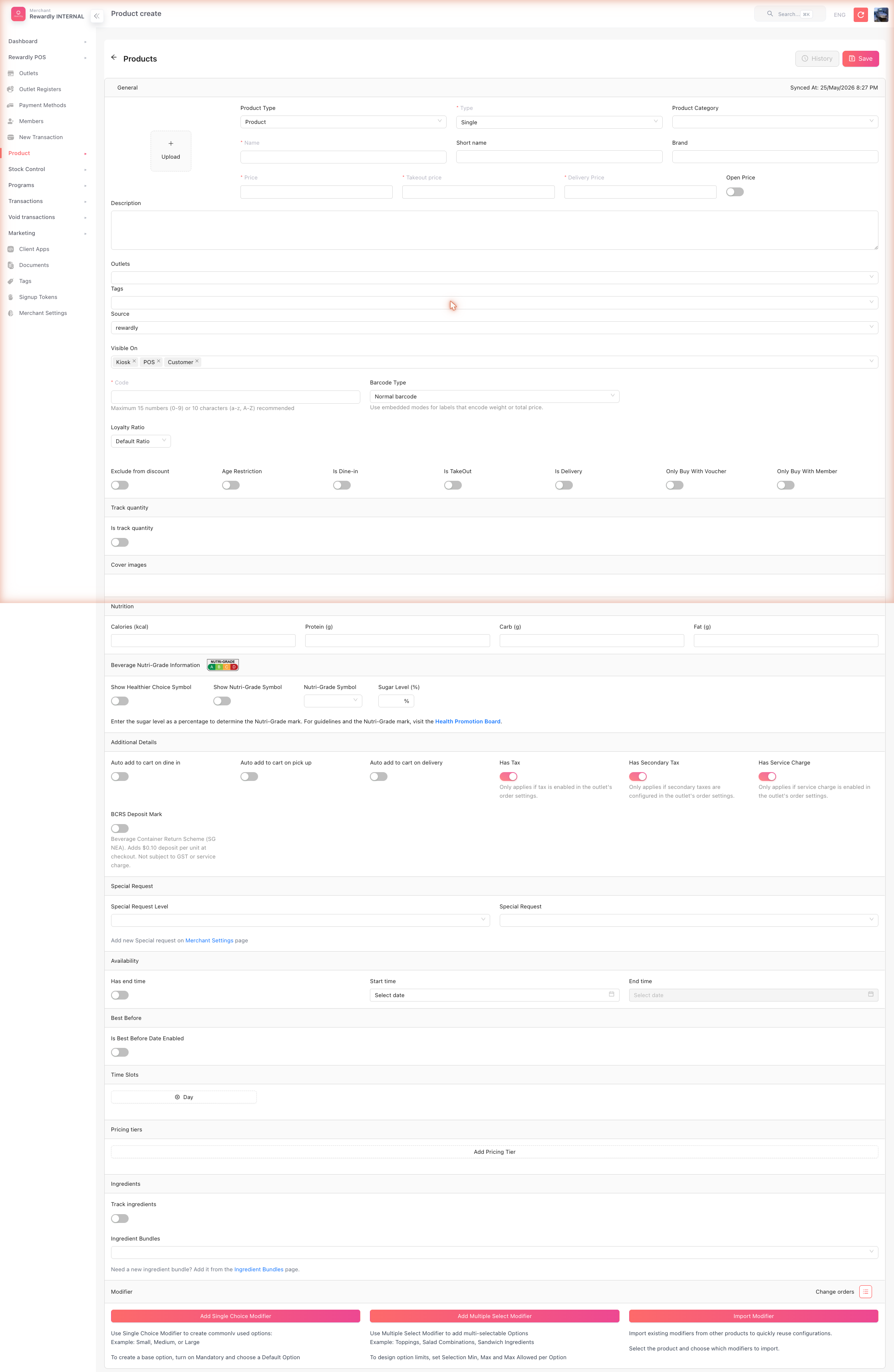 From now on the POS counts down with every sale, and the product shows as sold out at zero.
Advanced options
Per-product settings
| Field | What it does |
|---|---|
| Track quantity | Turns stock counting on for this product. |
| Remaining quantity | The current stock count. |
| Reset quantity by shift | Automatically resets the count at the start of each POS shift. |
| Reset remaining quantity | The number the count resets to each shift. |
| Allow return inventory on void | A voided sale adds the stock back. |
Products with variants (sizes, flavours) track stock per variant.
Inventory by outlet
By default a product has one shared stock count across every outlet. Give a branch its own count when it stocks the item separately — otherwise one branch marking an item sold out takes it off sale everywhere.
There are two routes to the same records.
From the product — quickest when you are already editing it:
- Open Products → Products and edit the product.
- Open the Outlet stock panel. Every outlet the product belongs to has a row.
- Turn on Control inventory for that outlet, then Track quantity, then set Remaining.
- (Optional) Reset by shift and Reset to, and Allow return.
- Save.
From Stock Control — better when setting up many products at once, and the only place to set per-outlet prices: Stock Control → Product Inventory (/inventory-outlet):
- Click Create.
- Choose the Outlet and the Product.
- Under Inventory Control, turn on Control inventory, then set Track quantity and the outlet's Remaining quantity.
- (Optional) Under Price Control, set outlet-specific dine-in / takeout / delivery prices.
- Save.
The Product Inventory list supports CSV export and Smart Import (bulk upload from a spreadsheet) — handy when you manage many products across many outlets.
Which number is in charge
An outlet uses its own stock only once Control inventory is on for that outlet. Until then it reads the product's Remaining quantity from the Track quantity section above — the same number every other uncontrolled outlet reads, so changing it changes stock for all of them at once.
The reverse catches people out too: once an outlet controls its own stock, editing the product-level Remaining quantity no longer affects that outlet. If one branch marks something sold out and it comes back on sale by itself, this is usually why — the branches were taking turns editing the same shared count.
The stock ledger
Stock Control → Inventory (/inventory) is a read-only history of every stock movement — type (in / out / adjustment), quantity, the count before and after, the reason, and the staff member. You can also add a manual adjustment here after a stock-take.
Good to know
If you need to keep selling past zero, turn on Allow negative inventory (sell out-of-stock items) under Outlets → Order settings. It is off by default, and it only applies to sales made on the POS — the customer web app and the kiosk still block out-of-stock products. Daily caps set with Inventory Pools are also still enforced.
There is no low-stock alert for products. A low-stock threshold exists only for ingredients.
Related
- Products & Categories — where tracking is switched on.
- Modifier Inventory — the same idea for add-ons.
- Stock Reports — reviewing stock history.