
Tables & Dine-In
Overview
If you run table service, Tables let you attach each order to a physical table, track which tables are occupied, and (in Full Service mode) assign waiters to sections.
How it works
- Tables are grouped into sections (e.g. Patio, 2nd Floor).
- Each table has a name and a seat count, and is linked to a QR code so customers can order from the table.
- Dine-in behaviour — whether table scanning is required, and what happens to a table after payment — is set on the outlet.
Default setup
Bean & Brew example: a handful of tables in one seating area.
1. Create a section
In the sidebar open Table Sections (/table-sections), click Create, choose the Outlet and give the section a Name (e.g. Main Floor).
2. Create the tables
In Tables (/tables), click Create for each table:
- Outlet and Section
- Table name — e.g.
T1 - External ID — links the table to its QR code
- Pax — the number of seats
3. Turn on dine-in
On the outlet's Order tab, open Dine-In Settings and turn on Allow Dine In.
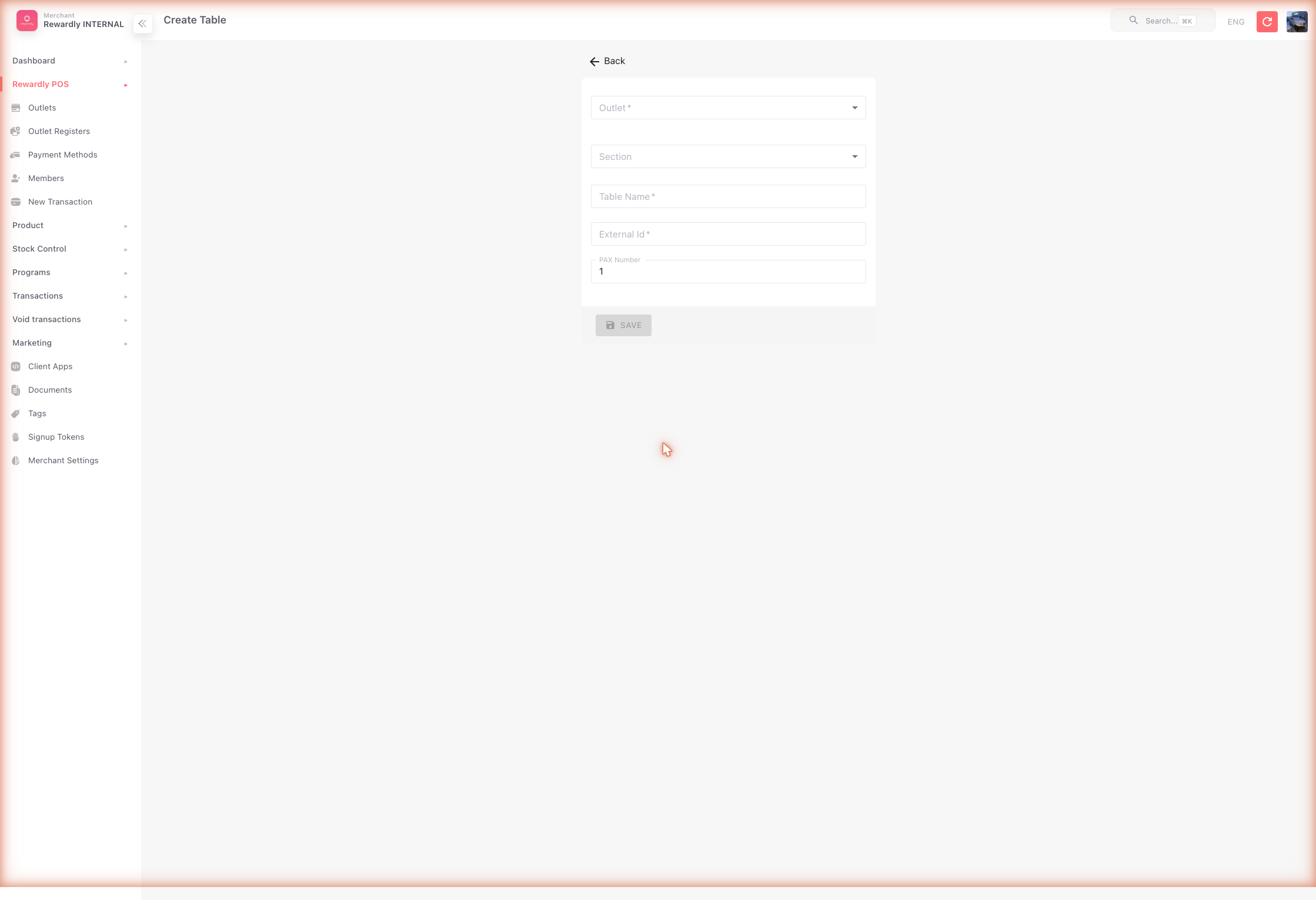
Table QR codes
Every table has a QR code customers scan to order. Which kind of QR you get depends on the outlet, and it decides whether you can print it once and leave it on the table.
| Outlet | QR code | Can you print it? |
|---|---|---|
| Quick Service (or Retail) | The outlet's ordering link, with the table's External ID. Never changes. | Yes |
| Full Service with Static table QR on | One permanent QR per table. Never changes, and survives payment. | Yes |
| Full Service with Static table QR off | A fresh QR each sitting. Expires after a few hours and again when the bill is paid. | No — print it from the POS each time |
Turn on Static table QR
For Full Service outlets only. On the outlet's Order tab, open Dine-In Settings and turn on Static table QR, then save.
Orders still behave exactly as Full Service always has — items go to the kitchen, the table keeps its open bill, and you settle up later. The only change is that the table's QR stops being regenerated, so the same printed code keeps working for every guest.
Getting the QR codes
In Tables (/tables) the Order Link column shows each table's QR link, tagged so you can tell them apart:
- Static QR — the permanent code. This is the same code the POS prints, so a guest scanning your printed sign and a guest scanning a POS-printed chit land in the same place.
- Order link — a Quick Service outlet's ordering link.
- Please print from POS — the QR changes each sitting, so there is nothing here to print.
Click the ⋮ button on any row to see that table's QR code full size and copy its link.
Printing a set for a print shop
Filter the list to one Outlet, then click Export table QR. You get a PDF with one card per table — table name, outlet name, the QR, and the link printed underneath in case a camera will not focus — four to an A4 page with dashed cut lines.
The QR codes are vector, so a print shop can scale them up to any size without them going blurry. Ask them to print at 100% — the PDF says so in the footer.
Laminating
Because these codes never change, they are safe to laminate or mount permanently. Trim along the dashed lines, laminate, and stand one on each table.
Turning Static table QR off later
Codes you have already printed keep working — switching the setting off does not retire them. If you need old signage to stop working, replace the printed codes.
Advanced options
| Setting | What it does |
|---|---|
| Static table QR | Full Service only. Gives each table one permanent QR you can print and laminate, instead of a new one each sitting. |
| Multiple sections | Organise a larger venue into several named areas. |
| Skip scanning/select table | Removes the table step from dine-in orders. On the POS, choosing Dine-in (Eat in on Quick Service) opens the menu straight away instead of the table screen, and online guests can order without scanning a table QR. Turn this on for counter service where you do not track orders by table. Full Service always requires a table, so the toggle is greyed out there. |
| Default table status after paid | After payment, mark the table needs cleanup or available. |
| Auto-lock table on print bill | Lock the table when the bill is printed. |
| Waiter table assignment | Limit a waiter (a POS user role) to specific tables — see Point of Sale. |
Related
- Point of Sale — attaching an order to a table.
- Online Ordering — customers ordering from a table QR.
- Outlet Settings — Dine-In Settings on the Order tab.