
Products & Categories
Overview
Products are the items you sell. You need products before you can ring up a sale — and several loyalty features (stamp cards, discounts, vouchers) target specific products or categories, so it's worth setting them up tidily.
Products are grouped into categories.
Default setup
Bean & Brew example: a
Coffeecategory with aLatteproduct.
1. Create a category
- In the sidebar open Products → Product Categories, then click Create.
- Set the Name (
Coffee), an Order number, and optionally a colour and image. - Save.
2. Create a product
- Open Products → Products, then click Create.
- In Basic info: add an image, the Name (
Latte), the Category (Coffee), and a Code. - In Pricing: set the price, and leave Loyalty Ratio on Default Ratio.
- Save, and repeat for your other products.
The product list
Products → Products (/products) opens a datagrid of every product, sorted by most recently updated. Each row shows:
| Column | What it shows |
|---|---|
| Image | The product thumbnail. |
| Name | The product name. |
| Code | The product code. Click it to copy to the clipboard. Sorting by code is silently disabled once you have more than 300 products. |
| Source | Where the product came from (rewardly / eats365-menu / shopify / vend). |
| Tags | The product's tags. |
| Type | Single, Combo, or Variant. |
| Categories | The categories the product belongs to. |
| Track Quantity | A Yes / No tag. |
| Exclude from Discount | Whether the product is excluded from discounts. |
| Visible On | Channel tags — kiosk, pos, customer, grab, foodpanda, deliveroo, keeta. |
| Dine-In / Takeout / Delivery price | Per-channel price tags, shown green when that channel is enabled and red when it's off. |
Row actions
- Clone / duplicate — the duplicate icon copies the record, appends
_<timestamp>to the code, and opens a pre-filled create form so you can adjust and save a near-identical product. - Export — confirms, then exports all filtered products to a richly-nested CSV that includes modifiers, combos, operation times, and pricing tiers. Because it covers the entire filtered set, the file can be large.
Filters
Click Filter to narrow the list by:
- Search name, outlets, categories, tags.
- Product Type — product / membership / program / storeValue.
- Type — single / combo / variant.
- Source — rewardly / eats365-menu / shopify / vend.
- Visible On channel.
- Dine-in / Takeout / Delivery (boolean).
- No Tag — products with no tags.
Bulk actions
Select one or more rows to reveal bulk actions:
- Bulk Delete — removes every selected product.
- Bulk Update — a bar of checkboxes (Track Quantity, Exclude from Discount, Track Ingredients, Dine-In, Takeout, Delivery) with Enable / Disable buttons. Tick the fields you want to change, then click Enable or Disable to set those boolean fields on every selected product at once.
Editing many products at once
Use Bulk Update to turn a channel on or off, or to switch on Track Quantity, across a whole category of products without opening each one.
Product Categories
Open Products → Product Categories (/productCategories). A category groups related products. Key fields:
| Field | What it does |
|---|---|
| Name | The category name. |
| Order | Its position in lists. Must be ≥1 and unique. On create the form auto-suggests the next free number (the current maximum + 1); uniqueness is checked against your existing categories. |
| Color / Image | Visual styling. |
| Product Type | Product, Membership, Program, or Store Value. Switching the type clears any membership/program/store-value links already set. |
| Source | Where the category came from. Locked to rewardly when you create one. Categories synced from eats365-menu, shopify, or vend are source-locked, and show their source ID read-only. |
| Outlets | Which outlets show the category. |
| Age Restriction | Marks the category as age-restricted. On by default. |
| Visible on | Which channels show it — Kiosk, POS, Customer, and delivery platforms (Grab, Foodpanda, Deliveroo, Keeta). New categories default to Kiosk, POS, and Customer. |
| Potential Quantity Limit | An optional cap on quantity for the category. |
| Start / End datetime | The window the category is active. Setting an end automatically sets its time to 23:59:59 and switches on has end time. |
| Time Slots | Per-channel, per-weekday availability windows entered as time pairs in HH:mm format. |
| Tags | Product tags applied to the category. Use the inline + Add new tag prompt to create or look up a tag without leaving the form. |
| Container discount | An optional category-wide discount — see below. |
Order uniqueness
Order numbers are validated in your browser across up to 500 categories. If you have more categories than that, double-check the number is free before saving.
Container discount
The Container discount is used for beverage container / cup deposit visuals. It carries:
- A discount value and a type — percentage or fixed.
- A set of named container colours, each with its own colour picker, so the POS can show the right cup or container visual for the deposit.
Product fields
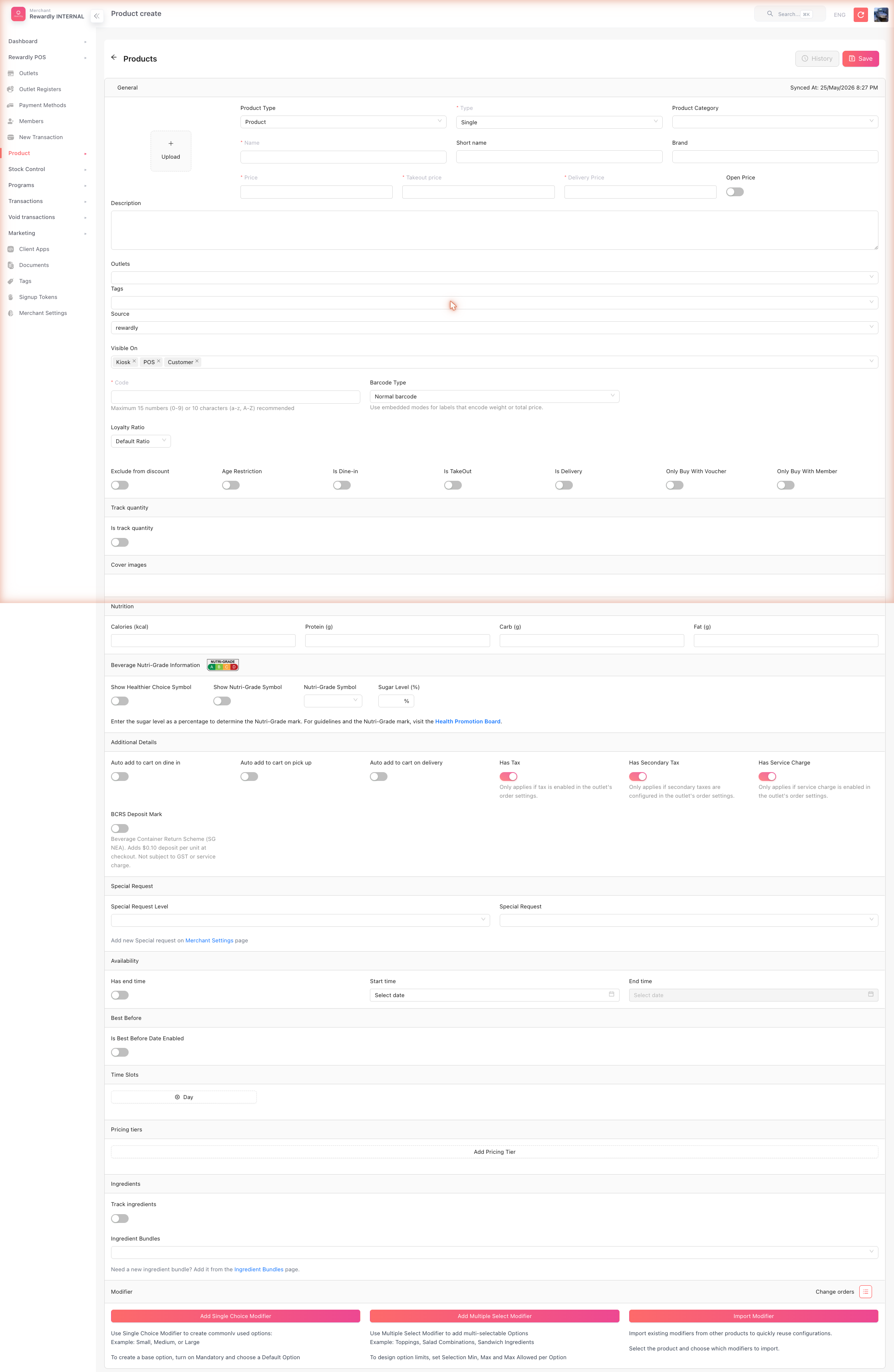
The product form is large. Its main sections are:
| Section | What it covers |
|---|---|
| Basic info | Image, name, short name, brand, description, category, code/barcode, outlets, and which channels the product is visible on. |
| Pricing | Prices per service type (dine-in / takeout / delivery), open price, and the loyalty settings below. |
| Inventory | Stock tracking. |
| Cover images | Extra product images. |
| Modifiers | Add-ons and options (e.g. milk choice, extra shot). |
| Variants | Variations such as size or flavour, each with its own price and stock. |
| Combo | Bundle several products into one combo item. |
| Availability / Time slots | When and where the product can be sold. |
The loyalty connection
These product fields decide how a product behaves with your loyalty features:
| Field | What it does |
|---|---|
| Loyalty Ratio | Default Ratio = earns at the loyalty program rate. No Loyalty = earns no points. Custom Ratio = earns at a special rate just for this product. |
| Exclude from discount | The product is never discounted, even by an active discount. |
| Only Buy With Voucher | The product can only be obtained via a voucher. |
| Only Buy With Member | Only members can buy the product. |
Per-product earn rates
Use Custom Ratio to make a high-margin item earn points faster, or No Loyalty on items you don't want to reward (e.g. gift cards).
Product type, channels, and pricing
Beyond the basics, the product form exposes several configurable fields:
| Field | What it does |
|---|---|
| Product Type | Product, Membership, Program, or Store Value. Choosing any non-product type reveals a linkage selector for the matching membership, program, or store-value record. |
| Type | Single, Combo, or Variant. Variant products drive a separate variant/SKU model (see Variant Attributes). |
| Is Dine-in / Is TakeOut / Is Delivery | Per-channel availability toggles, each with its own price. |
| Open Price | Lets the cashier enter the price at the POS instead of using a fixed price. |
Tax & charges
| Field | What it does |
|---|---|
| Has Tax | The product is taxed. |
| Has Secondary Tax | Applies the outlet's secondary tax. Depends on the outlet's secondaryTaxes config (Outlet → Order tab). |
| Has Service Charge | Applies the outlet's service charge. Depends on the outlet's serviceChargeType config (Outlet → Order tab). |
Singapore compliance
These fields cover Singapore compliance:
| Field | What it does |
|---|---|
| BCRS Deposit Mark | Adds a $0.10 Beverage Container Return Scheme deposit per unit at checkout, not subject to GST or service charge. When it's on, Order modes that charge BCRS lists Dine-in, TakeOut and Delivery; untick a mode to drop the deposit there — e.g. untick Dine-in when that drink is poured from a dispenser. All three start ticked. |
| Nutri-Grade | Show Nutri-Grade Symbol, the Nutri-Grade Symbol itself, Show Healthier Choice Symbol, and the sugar level % for the printed/displayed grade. |
| Age Restriction | Marks the product as age-restricted. |
Best Before, barcode, and cart behaviour
| Field | What it does |
|---|---|
| Best Before | Is Best Before Date Enabled, then Best Before By in Hours / Days / Months, plus free-text Best Before Info. |
| Barcode Type | The barcode format for the product. |
| Auto add to cart | Automatically adds the product to the cart per channel (dine-in / pick-up / delivery), with a Min order amount threshold. |
| Upsell | Flags the product to be suggested as an upsell. |
| Special Request | Enables a special-request note, with a level. |
Operation Times / Time Slots
Set per-weekday start and end times to control when the product can be sold.
Pricing Tiers
Each product can carry per-product Pricing Tiers — alternative prices that apply under a pricing rule, for example a happy-hour or member tier.
Cost & Recipe
The Cost & Recipe section, right after General, is the one place for what a product costs you: the cost of one item, how that cost is worked out, and whether a sale deducts the recipe's ingredients.
| Part | What it does |
|---|---|
| Cost per item | What one sale of this product costs you now, before tax and before add-ons, at the Outlet picked beside it. Not set means the product has no cost yet. A tag (Using recipe or Using purchase cost) appears beside the figure only when sales use another method than the one chosen under Cost method, and on a combo. |
| Cost method | Recipe — worked out from the recipe's ingredient quantities and their current prices. Purchase — the product's own purchase cost, for items you buy in and resell. |
| Recipe | Choose the recipe (an ingredient bundle). View breakdown lists each ingredient with its Quantity, Unit price and Cost, down to the Recipe total. Edit recipe opens the recipe in a new tab; a change there applies to every product that uses it. |
| Purchase cost | Purchase cost per item: what you pay for one, before tax. It is used while the outlet has no stock order price yet, and receiving a stock order updates it. |
| Ingredient tracking | Deducts the recipe's ingredients from stock each time the product is sold. When it is off, a sale deducts nothing, and a batch recorded in Make Stock on the POS takes them instead. Shown once the product has a recipe. |
A few things to know:
- While you change the method, the recipe or the purchase cost, the figure is a preview of your unsaved changes. Save the product to apply them.
- A new cost applies to sales from then on. Sales already made keep the cost that was recorded when they were paid — see Cost of Goods Sold.
- A recipe line is priced at the outlet's average or latest purchase price, or at the ingredient's unit price where the outlet has none. An ingredient with no price at all is counted as free, and the section names it.
- If no ingredient in the recipe has a price yet, the recipe cannot be costed and the purchase cost is used instead.
- Not set means sales of the product record no cost. Type its Purchase cost, or set it straight from a No cost row of the Cost of Goods Sold report.
- A Combo shows its recipe and tracking read-only. Its purchase cost is for the combo itself, such as packaging; the items chosen in it add their own costs.
- A Variant product has a Purchase cost for each variant, in its variants table.
Inventory
The Track quantity panel counts the product's stock. The Outlet stock panel further down gives a single branch its own count, separate from the shared one set under Track quantity — see Inventory by outlet. An outlet needs its own count before the product can go on a stock transfer.
Variant products and inventory
A Variant product (Type = Variant) generates a separate variant/SKU model. Each variant carries its own price and stock and is managed under Inventory (Product Inventory), drawing on the reusable options defined in Variant Attributes.
Modifiers
Modifiers are the add-ons and options a customer picks for a product — milk choice, egg style, extra toppings. A product can have several modifier groups (e.g. "Add on"), and each group holds a list of options (e.g. Sunny Side Up, Over Well).
The same group on many products?
Define it once as a Modifier Template and choose the products that use it. On the product form such a group is marked Modifier template: it is changed in the template, and here you can only switch its options on or off for this product.
Each group has a few settings in its header:
| Field | What it does |
|---|---|
| Name | The group's display name. |
| Mandatory | Forces the customer to choose an option before adding the product to cart. |
| Selection Min / Max | For multi-select groups, the fewest and most options a customer may pick. |
The options themselves are edited in a grid (scroll horizontally for the later columns):
| Column | What it does |
|---|---|
| Image | Optional picture for the option. |
| Option Name / Short Name | The name shown to customers, with a shorter name (printed on tickets) stacked beneath it. |
| Add-on Price | Extra charge for the option, set per dining mode — Dine-in / Takeout / Delivery. |
| Active | Master on/off switch for the option. Turning it off hides the option everywhere without losing its settings. |
| Channels | Which channels offer this option — POS, Kiosk, Customer. |
| Dining mode | Which order modes offer this option — Dine-in, Take-out, Delivery. |
| Quantity | For multi-select groups: the Min, Max, and Default quantity of this single option. For single-select groups this column collapses to a single Default switch that marks the pre-selected option. |
| Nutrition | Calories, protein, carb, and fat for the option. |
| Master Modifier | Links the option to a shared master modifier for inventory tracking. |
| Track Ingredients | Toggle to deduct recipe ingredients when the option is sold. |
| Ingredient Bundles | Reusable ingredient recipes attached to the option. |
Channel & dining-mode availability
The Channels and Dining mode checkboxes control where each individual option appears:
- All boxes checked (the default) — the option shows everywhere the product does.
- Uncheck a box — the option is hidden on that channel or dining mode. For a kiosk-only upsell, for example, leave only Kiosk checked.
- Uncheck them all — the option is hidden entirely (the same end result as turning Active off, but Active is the cleaner switch when you want a quick, non-destructive on/off).
Availability narrows, never widens
A modifier option can only appear where the product itself is visible. Ticking Customer on an option will not surface it in the customer app if the product's own Visible On excludes Customer — option boxes restrict availability further, they never extend a product's reach. The same applies to dining mode versus the product's own dine-in / takeout / delivery settings.
Product Variant Attributes
Open Products → Variant Attributes (/product-variant-attributes) to manage the reusable attributes — such as Size or Colour — that variant-type products draw on. This is the catalogue you edit to add a new size or colour option that several variant products can share.
Each attribute has these fields:
| Field | What it does |
|---|---|
| Name | The attribute name (e.g. Size). |
| Description | An optional description. |
| Is Required | Whether a value must be chosen for this attribute. |
| Is Active | Whether the attribute is in use. Defaults to active on create. |
| Possible Values | A list of options. Each value has a value, a display name, and a sort order. |
These attributes feed Variant (Type = Variant) products. Each variant of such a product is its own SKU carrying its own price and stock, managed under Inventory (Product Inventory).
Add an option everywhere at once
To offer a new size or colour across all variant products, add it as a Possible Value on the relevant Variant Attribute here — the products that use that attribute pick it up.
Related
- Inventory — track stock for the products you create here.
- Menus — group products into menus for the POS and online ordering.
- Loyalty Points — products can earn at a custom rate.
- Pricing Rules — drive the per-product pricing tiers.
- Stamp Cards, Discounts, Vouchers — these target products and categories.
- Getting Started — adding your first products.